Hisense TV Remote
Mobile Tools ShopHouse & Home
3.9105.00 Reviews
- Version
- 1.0.12mts
- Installs
- 100.00K
- Age Rating
- Everyone
Screenshots
Our Review of Hisense TV Remote
 Analysis by Appyee
I like the idea of keeping a TV remote on my phone, but I judge these apps by a practical question: can I still control the television when the physical remote has vanished just as the opening credits begin? Hisense TV Remote is aimed at that familiar moment, offering phone-based control for Hisense TVs. It makes the most sense as a convenient backup and an easier way to navigate in certain situations, rather than as a reason to throw away the remote that came with the TV.
Where a phone remote earns its place
The appeal is simple: a phone is usually close at hand, while a remote can slip between cushions, get carried into another room, or end up under a blanket. In my experience, a dedicated remote app is most useful when I want to make a quick adjustment without pausing what I am doing to search the living room. It can also be handy when someone else has the physical remote and I need to change something from where I am sitting.
This is a free House & Home app from Mobile Tools Shop, with a 3.7 average from around 827 ratings and more than 100,000 installs. It is rated for Everyone, and the current version is 1.0.12mts. Those figures suggest that people do use it as a practical utility, though the rating is a reminder that a phone remote is not automatically a smooth replacement for every household’s setup.
Getting connected and setting expectations
First things first, downloading and setting up the Hisense TV Remote app was a breeze. I hopped onto the app store, did a quick search, and it was ready to go in no time. The app is available for both Android and iOS, so no worries about compatibility.
Once I opened it up, the app walked me through a simple setup process. It connects to your TV via Wi-Fi, which means you can say goodbye to those annoying infra-red limitations. Just make sure your TV and phone are on the same network, and you’re good to go!
That same-network requirement is worth treating as part of the routine, not as a fault to troubleshoot only after something goes wrong. If the phone has switched to a different Wi-Fi network, or the TV is not connected to the network you expect, a remote app can appear unresponsive even though the television itself is working normally. Before relying on it for a movie night, I would open the app while the TV is on and check that the connection is available.
There is also a useful trade-off compared with an infrared handset. A Wi-Fi remote does not need to be pointed directly at the television, which can help when the phone is off to the side or the TV’s sensor is awkward to reach. But it depends on the home network and the TV being reachable there; it is not the same kind of independent, point-and-press fallback as a physical remote. I would keep the original remote somewhere sensible rather than treating the app as its guaranteed replacement.
Controls that help with browsing
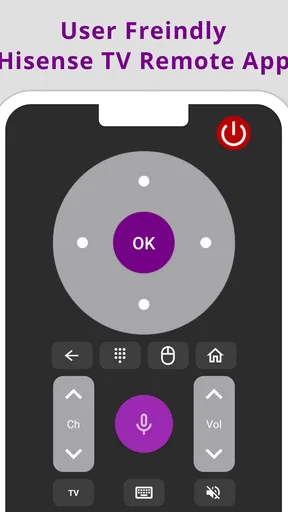
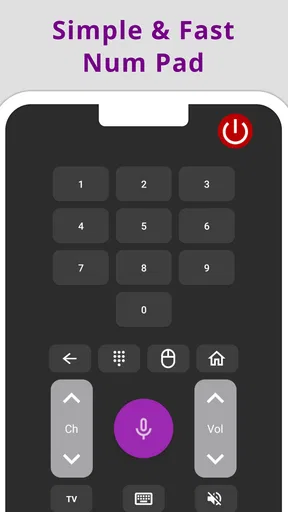
What I really love about this app is its user-friendly interface. Seriously, it’s like they read my mind and knew exactly what I wanted from a remote app. The buttons are clearly laid out, making it super easy to navigate through different menus on your TV.
Another cool feature is the voice control. Yep, you heard that right! You can literally talk to your TV through this app. It’s perfect for those lazy days when you just can’t be bothered to type out a search query.
Voice input is especially appealing when a search involves a show title or a longer phrase: saying it can be less fiddly than moving through an on-screen keyboard one character at a time. I would still think of it as an optional shortcut rather than the only way to search. If the room is noisy, or I am watching while someone else is talking, the regular controls are the safer choice. The benefit is having another way to enter a query when typing with directional buttons feels slow.
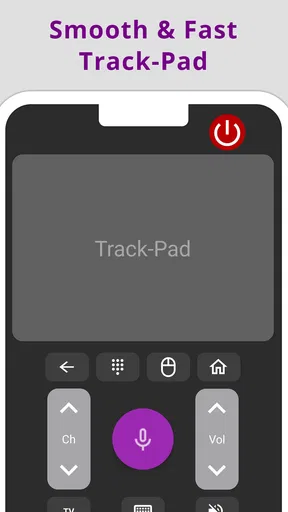
Let’s not forget about the touchpad function. This feature allows you to use your smartphone screen as a trackpad, giving you smoother control over your TV’s cursor. It’s a pretty neat addition, especially when you're browsing the web on your TV.
The touchpad makes the most sense for tasks that involve moving a pointer around, not for every kind of television control. For ordinary channel or menu navigation, clearly separated buttons are easier to use without looking down for long. When browsing, though, a broad swipe can feel more natural than repeatedly tapping directional arrows. My practical tip is to switch between the touchpad and button controls based on the task, rather than expecting one mode to be best for everything.
A more realistic living-room routine
Now, onto the nitty-gritty of using the app daily. One thing that stood out for me was how responsive it is. There’s hardly any lag between the app and the TV, which is crucial when you’re in the middle of an intense binge-watching session.
The app also integrates well with streaming services. From Netflix to Hulu, you can easily switch between your favorite platforms without a hitch. And with the customizable shortcuts, you can have your go-to apps just a tap away.
A realistic use case is arriving home with the remote left in another room and wanting to launch a familiar streaming app without interrupting everyone else. A shortcut can reduce the number of menu steps, while the phone stays in your hand. I would set up only the services I actually use often; a small selection is easier to scan quickly than a screen crowded with choices. That turns shortcuts into a practical routine rather than a feature I forget about after setup.
There is a small but important distinction between using this for navigation and using it as the center of a whole smart-home setup. Its job is television control, so I would choose it for quick access to TV actions rather than expect it to manage other devices around the house. If I want a broader control system for multiple brands or home equipment, a universal remote or a platform designed for that wider purpose may be a better fit. For a Hisense owner who mainly wants the phone to stand in when the handset is missing, a focused remote app is the more direct option.
For families, keeping the app ready on one household phone can be useful when the main remote is being used by someone else. It is less ideal if everyone expects independent control at once, since a phone still needs to be available, unlocked, and connected. I would treat it as a personal convenience, not assume it will replace a shared remote for every person in the room.
Limits to keep in mind
The biggest practical limitation is the reliance on the same Wi-Fi network. Guests who are connected to a separate network, people using a phone away from home, or anyone dealing with a temporarily unavailable network should not count on the app as their only means of control. That is precisely where a physical remote remains useful: it is ready without needing the phone’s network connection or an app screen.
Phone controls also bring phone-specific friction. The display may lock, notifications can distract, and the phone can be in use for something else at the moment you want to pause or change the volume. Those are not reasons to avoid the app, but they explain why I see it as a companion rather than a complete substitute. The television remote stays better for fast, repeated adjustments when the phone is across the room or nearly out of battery.
It is also sensible to check that the particular Hisense TV is compatible before building a routine around the app. The title and purpose make its intended audience clear, but TV models and network arrangements can differ. I would install it, try basic navigation, then test a search and an app shortcut before putting the original remote away. That quick check answers the practical question that matters: whether the combination of your TV and home network behaves well in your own living room.
The app is free to install, while it also offers in-app purchases ranging from $0.99 to $23.99 per item. I would look at what is offered inside the app before paying for anything and decide whether it adds something I personally need. The core decision is not whether a phone remote sounds convenient in theory, but whether its available controls and connection work reliably with the TV I own.
Who should try it—and who should not
I would recommend giving it a try if you own a Hisense TV, often misplace the remote, and usually keep your phone nearby. It is also a good match for someone who finds on-screen text entry tedious and wants voice control or a touchpad available for the right task. People who browse using a TV cursor may get more value from the touchpad than someone who only changes volume and power.
I would skip it as a primary remote if you need a control method that works independently of Wi-Fi, if your phone is often elsewhere, or if you prefer tactile buttons you can use without looking. Someone who needs one controller for several kinds of devices should also compare it with a universal remote rather than assume a TV-focused app will cover the whole setup. The right choice depends less on feature count than on how you actually watch and control your TV.
Android users should also note that the app requires Android 6.0 or later. The rating of Everyone makes it suitable for a general household audience, but the useful decision is still personal: whether the phone-based controls suit the people who will use them and whether the TV stays accessible on the same network. A quick trial is more revealing than relying on the idea of a remote app alone.
My final take
Overall, the Hisense TV Remote app is a fantastic addition to any smart home setup. It’s convenient, easy to use, and packed with features that make watching TV more enjoyable. Plus, it’s free, so there’s really no reason not to give it a try!
So, if you're ready to ditch the physical remote and embrace the future of TV control, this app might just be your new best friend. I’ve been loving every second of using it, and I’m sure you will too!
My recommendation is a little more measured: try it as a backup first, confirm that your TV and phone connect as expected, and see whether voice input, shortcuts, or the touchpad genuinely improve your routine. If they do, it can make everyday control easier; if not, the familiar handset remains the better tool. For a Hisense owner who wants a convenient second way to navigate, it is worth a look, but I would not give up the physical remote.
Verdict
Strengths of Hisense TV Remote
- Intuitive interface for easy navigation.
- Seamless connection with Hisense TVs.
- Customizable remote button layout.
- Voice control for hands-free use.
- Quick setup and pairing.
Limitations of Hisense TV Remote
- Limited compatibility with non-Hisense TVs.
- Requires stable Wi-Fi connection.
- Ads may interrupt usage.
- Limited customer support options.
- Voice control needs improvement.
Other Releases by Mobile Tools Shop
View All
Philips TV Remote
House & Home4.4
Similar Picks in This Category
View All
Universal TV Remote Control
CodeMatics Media Solutions3.9

AlfredCamera Home Security app
Alfred Systems Inc.4.7

Planner 5D: AI Home Design
Planner 5D4.5

Universal Tv Remote-Cast to TV
One Music Player4.1

Zillow: Homes for Sale & Rent
Zillow Group4.8

99acres Buy/Rent/Sell Property
infoedge.com4.3
Frequently Asked Questions
What devices are compatible with the Hisense TV Remote app?
The Hisense TV Remote app is compatible with a wide range of Hisense smart TVs. Ensure that your TV is a smart model with Wi-Fi capabilities. Additionally, the app is available for both Android and iOS devices, so you can use it on smartphones or tablets running these operating systems.
How do I set up the Hisense TV Remote app?
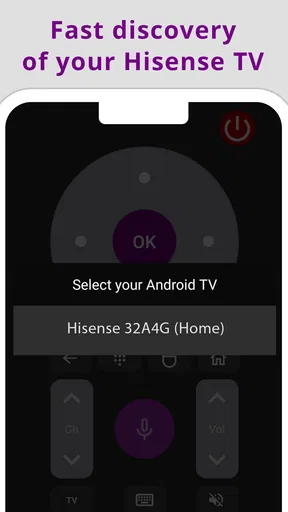
Setting up the Hisense TV Remote app is straightforward. First, download the app from the Google Play Store or Apple App Store. Ensure your smartphone and Hisense TV are connected to the same Wi-Fi network. Open the app, and it will automatically detect your TV, allowing for easy pairing and control.
What features does the Hisense TV Remote app offer?
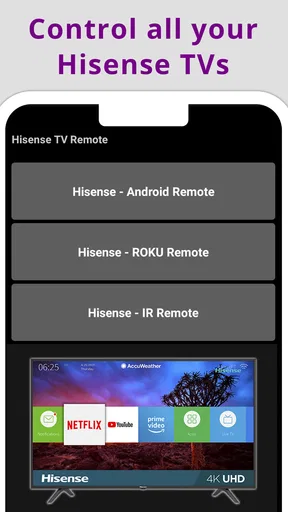
The Hisense TV Remote app provides a comprehensive set of features, including basic remote functionalities like volume and channel control, as well as advanced options such as app navigation, input switching, and voice commands. It also allows you to control multiple Hisense TVs within the same network, making it versatile for households with multiple devices.
Is the Hisense TV Remote app free to use?
Yes, the Hisense TV Remote app is free to download and use. There are no hidden fees or subscription costs, making it an economical option for enhancing your TV control experience. However, ensure your device meets the app's system requirements to avoid any compatibility issues.
Can I use the Hisense TV Remote app without an internet connection?
To function properly, the Hisense TV Remote app requires both your smartphone and the Hisense TV to be connected to the same Wi-Fi network. This means that an internet connection is necessary for the initial setup and ongoing use. Without Wi-Fi, the app will not be able to communicate with the TV.
